Why we built Easy setup
Starting a session used to mean one long screen: the session name, courts, players, what to show on player chips, score logging, leaderboard columns and match generation. Experienced organisers like having every option in one place. Everyone else just wants to get people on court.
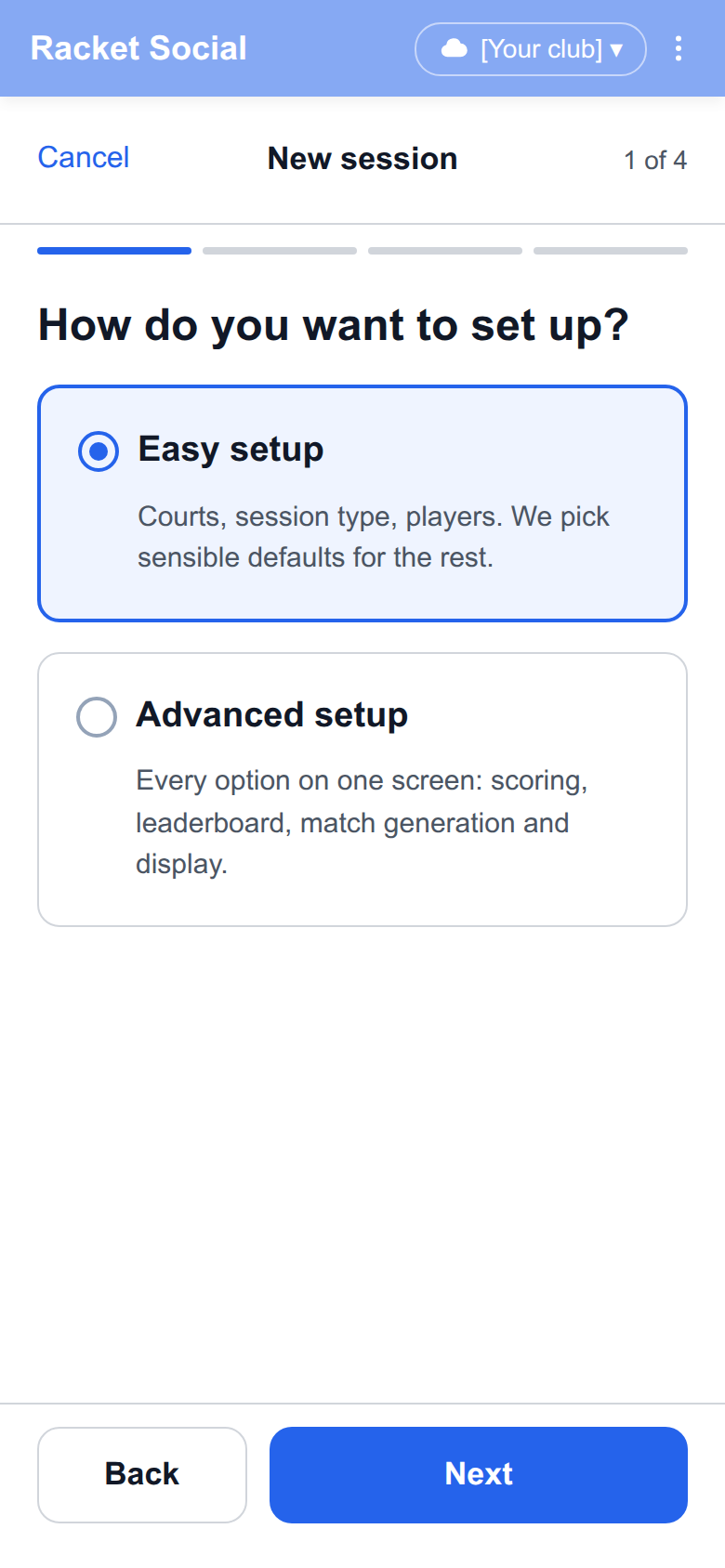
So when you tap Start session, Racket Social now asks one question first: how do you want to set up?
- Easy setup asks three things: how many courts, what kind of session, and who's playing. The app picks sensible defaults for the rest.
- Advanced setup is the full options screen you already know, with scoring, leaderboard, match generation and display.
Easy setup, step by step
Easy setup is four short screens, with a progress bar at the top and Back and Next at the bottom.
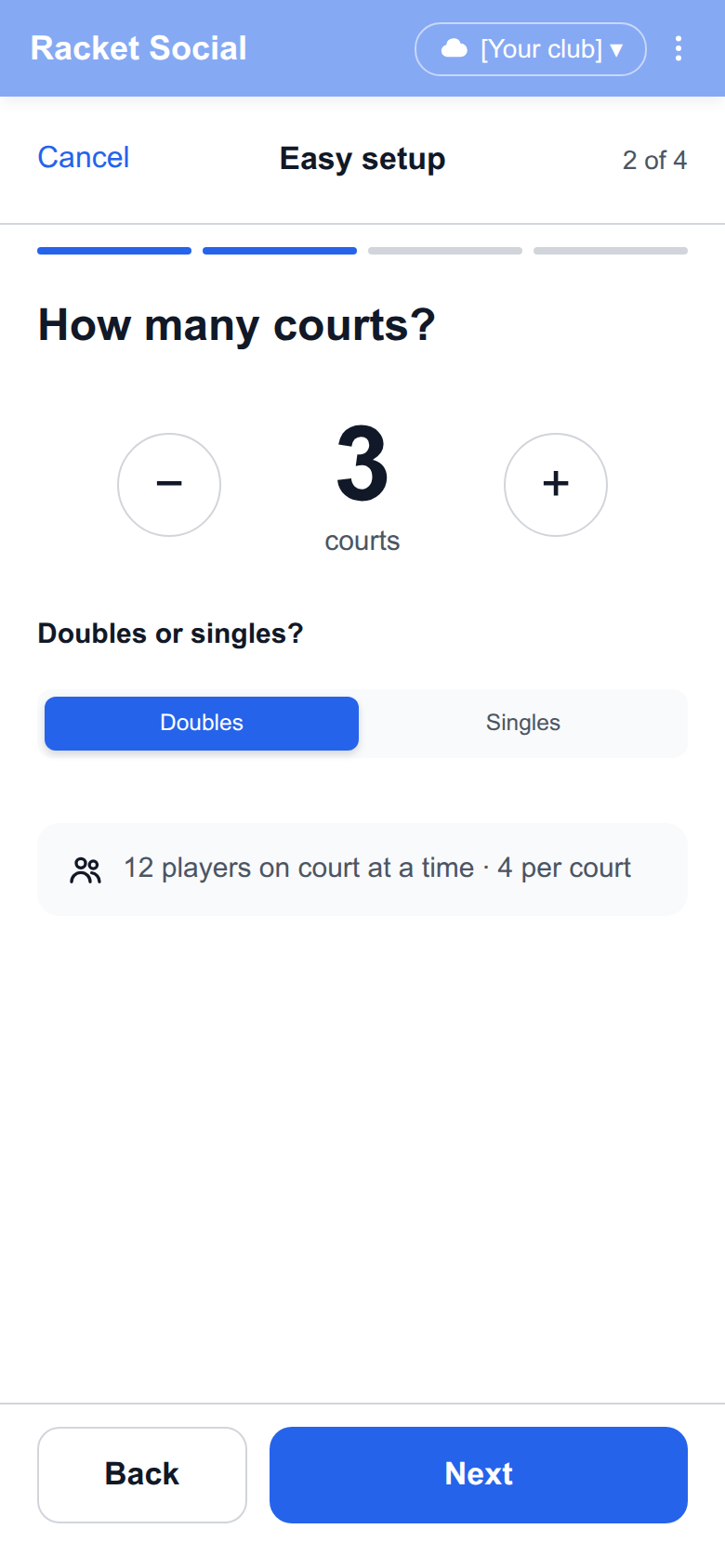
1. How many courts?
Tap + or − to set the number of courts, then choose doubles or singles. The app shows how many players fit on court at once, so you can see straight away whether you have enough people.
2. What kind of session?
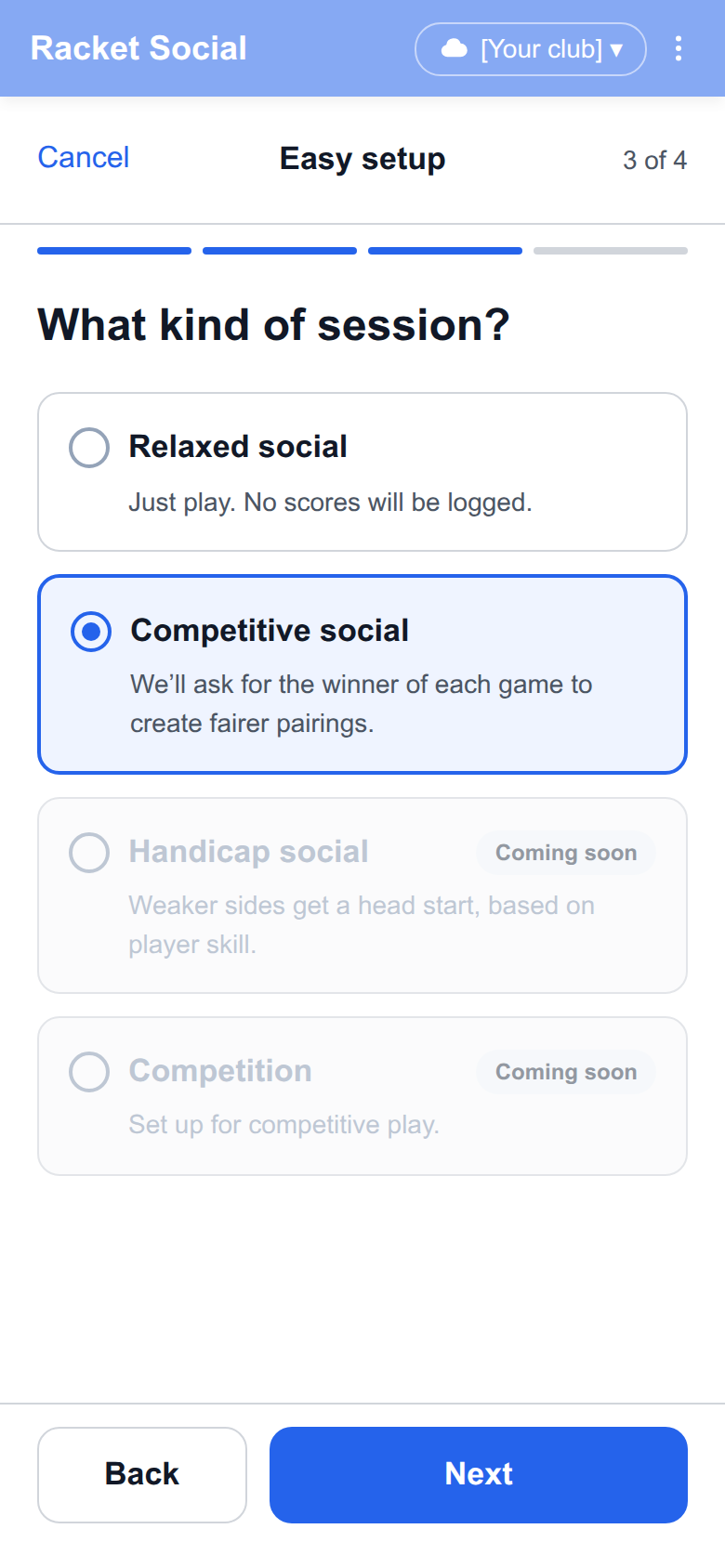
This is the one choice that changes how the evening runs.
- Relaxed social. Just play. No scores are logged, and the leaderboard shows how many games each person has played.
- Competitive social. After each game, the app asks who won. Those results feed each player's Club Score, which helps the app make fairer pairings. This is the default.
Two more session types, Handicap social and Competition, are on the screen marked "Coming soon".
Update, November 2026: Handicap social has since launched as Head start social, where the weaker side of each court gets a head start in points. Competitive social is now called Matched social.
3. Who's playing?
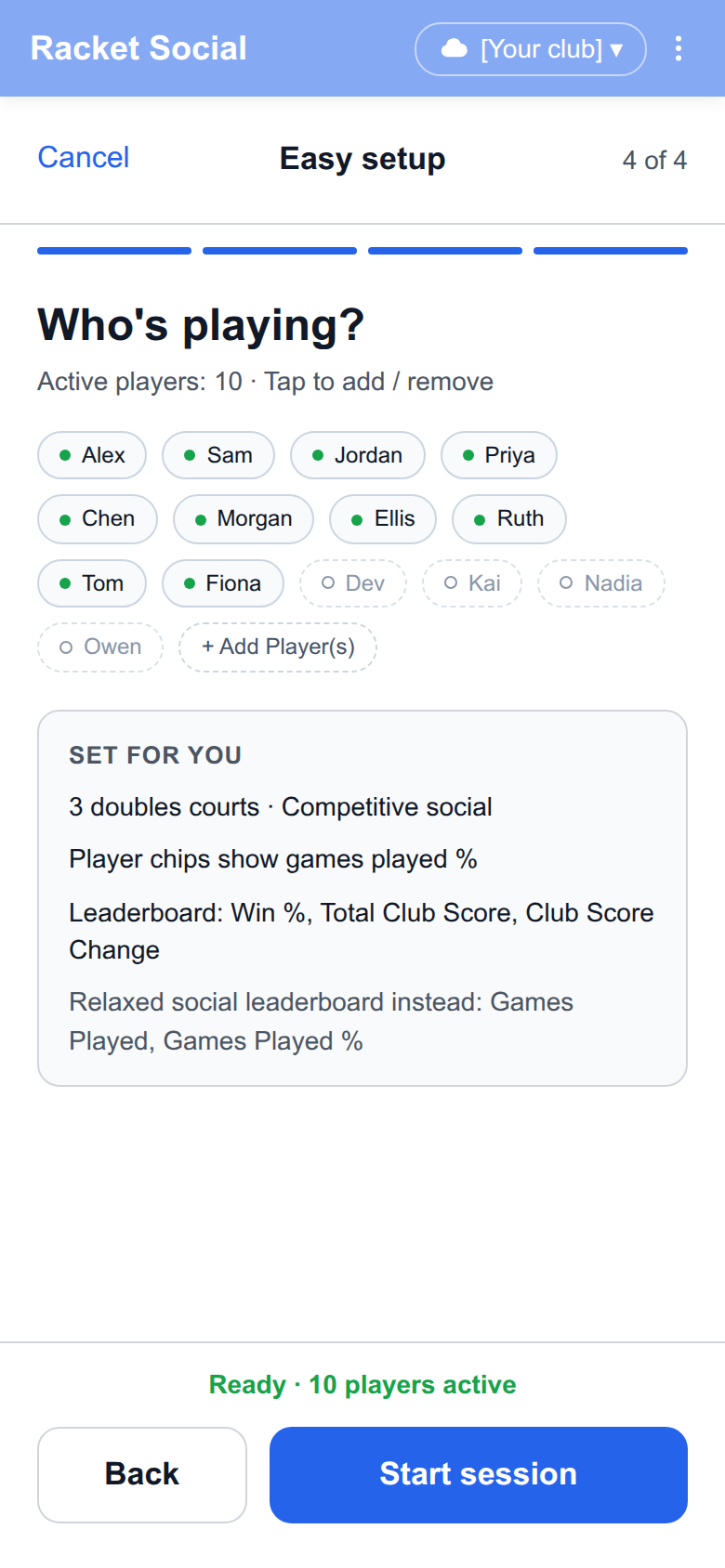
Tap players to add them to the session or take them out, or add new players. A short summary shows what Easy setup has set for you. When at least four players are active (two for singles), tap Start session.
What Easy setup sets for you
You don't have to think about any of these. They are fixed in Easy setup:
- Session name. Made from the day and time, for example "Sat - Nov 7 - 19:30".
- Player chips show each player's share of games played, so you can spot who has sat out most.
- Leaderboard, Competitive social: Win %, Total Club Score and Club Score Change, sorted by Win %.
- Leaderboard, Relaxed social: Games Played and Games Played %. With no scores there is no Win %.
- Match generation uses the standard settings.
Need more control? Advanced setup
Advanced setup is the full options screen, unchanged: session name, courts, players, player chips and the Advanced section with score logging, the points a game is played to, leaderboard columns and match generation. It is two screens: the choice, then everything else.
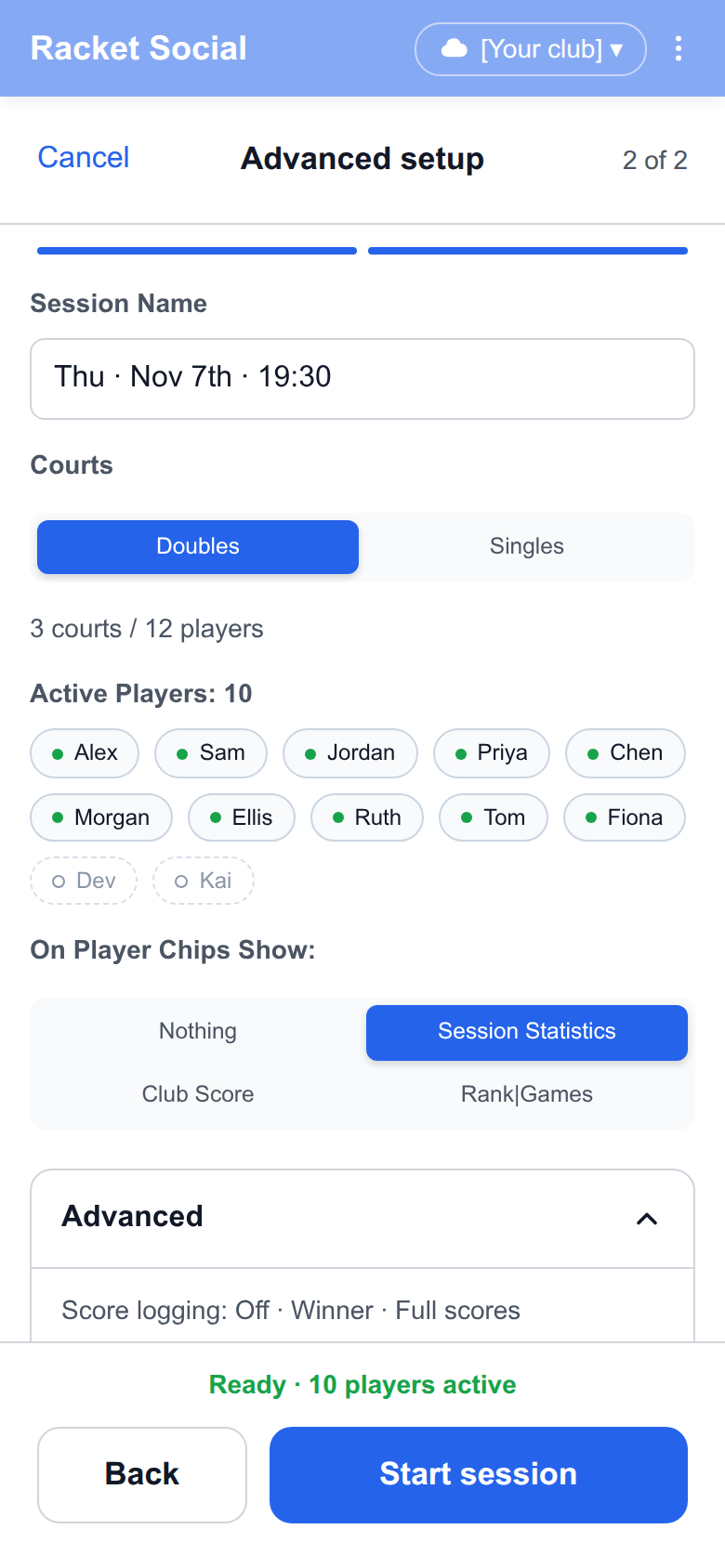
To switch, go Back to the first screen and pick the other option. Going from Easy to Advanced keeps what you've chosen so far, so you can start Easy and fine-tune one setting. Going from Advanced to Easy puts every answer back to the Easy defaults.
A few other things that changed
- One flow for everyone. New users used to get a separate first-session guide. Easy setup covers the same ground, so new and returning organisers now see the same screens.
- Nothing is saved until you start. Tap Cancel and the draft is gone. While you set up, the app header is greyed out. Tapping it asks whether you want to abandon the session and go back to the home screen.
Questions, or a setting you wish Easy setup chose differently? Tell us in the WhatsApp community.
Start your next session with Easy setup →
About the screenshots
- The screenshots come from our design mockups, with made-up player names and a placeholder club. Some wording in the app differs slightly.